

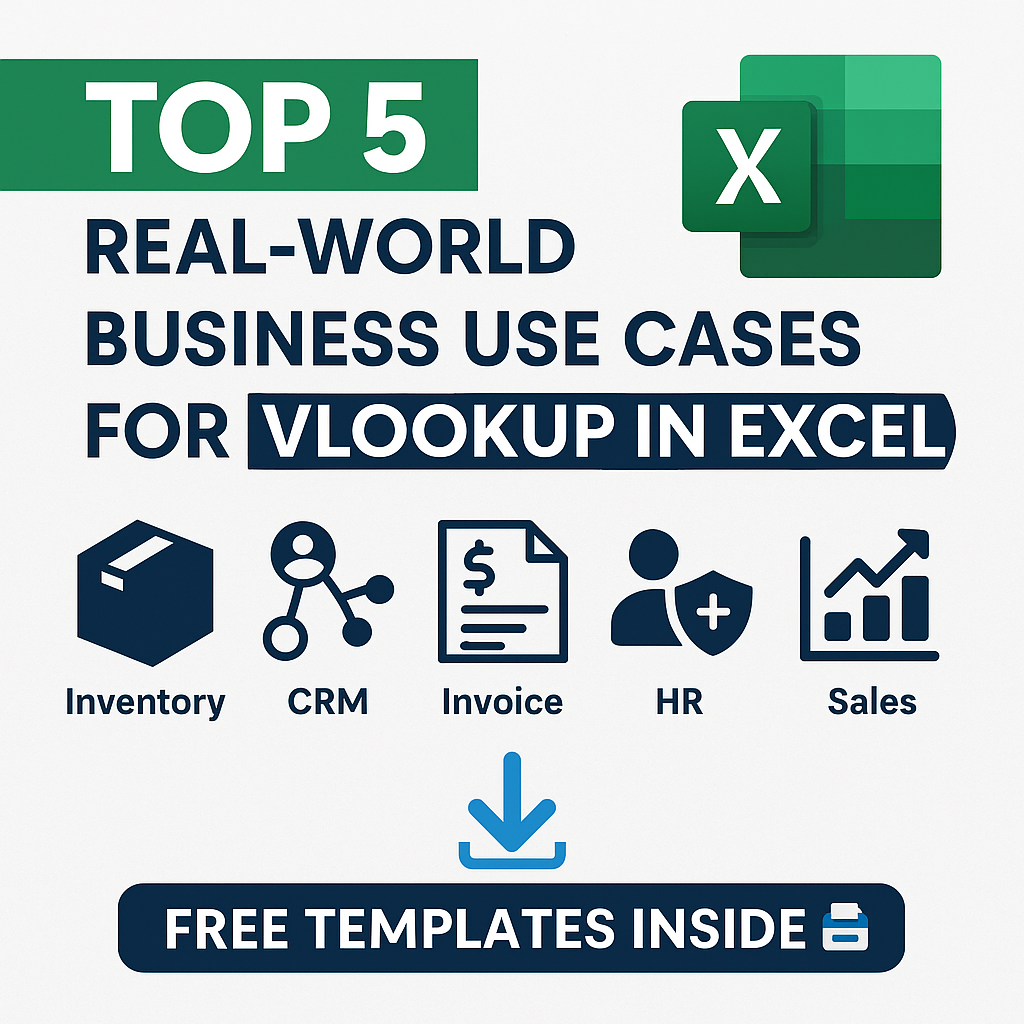
Introduction Excel is a powerful tool for businesses of all sizes. One of its most useful features is the VLOOKUP function, which allows you to retrieve data from a specific column in a table. While often overlooked, VLOOKUP can significantly improve efficiency and accuracy in various business tasks. In this blog, we’ll explore five practical business use cases for VLOOKUP in Excel, complete with a free downloadable Excel pack.
1. Inventory Management
Scenario: You manage an inventory list of products and want to quickly check current stock levels and pricing by entering a product ID.
How VLOOKUP Helps: You can create a form where staff input a Product ID, and VLOOKUP automatically pulls in product names, current stock, and prices from the inventory sheet.
Formula Example:
=VLOOKUP("P001", A2:D100, 2, FALSE)Business Impact: Reduces manual lookup errors and speeds up stock management.
2. Customer Relationship Management (CRM)
Scenario: Your team needs to find customer information such as name and last purchase date using a customer ID.
How VLOOKUP Helps: Link a dynamic dashboard that fetches customer data from a master CRM list. Just input the Customer ID, and VLOOKUP fills in the details.
Formula Example:
=VLOOKUP("C002", A2:C500, 3, FALSE)Business Impact: Enhances customer service by providing quick access to key data.
3. Invoice Reconciliation
Scenario: You need to reconcile invoices from two different systems—one with invoice IDs and another with payment statuses.
How VLOOKUP Helps: Use VLOOKUP to match invoice numbers between sheets and fetch corresponding payment statuses, amounts, or dates.
Formula Example:
=VLOOKUP(A2, Payments!A2:B100, 2, FALSE)Business Impact: Speeds up reconciliation and identifies mismatches in billing.
4. Employee Records Management
Scenario: HR needs to look up an employee’s department, designation, or salary using their employee ID.
How VLOOKUP Helps: Create a simple form or dashboard where entering an ID auto-populates the employee’s full details.
Formula Example:
=VLOOKUP(E2, EmployeeData!A2:E500, 3, FALSE)Business Impact: Saves time and ensures consistency in HR processes.
5. Sales Performance Reporting
Scenario: You generate monthly sales reports and want to fetch regional manager names or targets based on region codes.
How VLOOKUP Helps: Use region codes to pull in sales targets, actual figures, or assigned managers into your reporting sheet.
Formula Example:
=VLOOKUP(B2, RegionTargets!A2:D50, 4, FALSE)Business Impact: Automates data aggregation and reduces report preparation time.
Download Free Excel Templates
To help you get started, we’ve prepared an Excel pack that includes ready-to-use templates for all 5 use cases.
📥 Download Business Use Case VLOOKUP Excel Pack
Conclusion
VLOOKUP is more than just a lookup function; it’s a business enabler. From inventory and CRM to reporting and HR, it brings automation, accuracy, and speed to everyday operations. Mastering it can significantly boost productivity and reduce operational errors.
If you want to learn how to automate more with Excel or need help building Excel-based systems for your business, contact our team at Biz Synergist.


